Custom Fonts in Kadence: A Step-by-Step Guide

When it comes to personalizing your website, few things have as much impact as the fonts you choose. Custom fonts allow you to add personality, reinforce branding, and elevate the overall design of your site.
This plugin can upload and use ANY custom font.
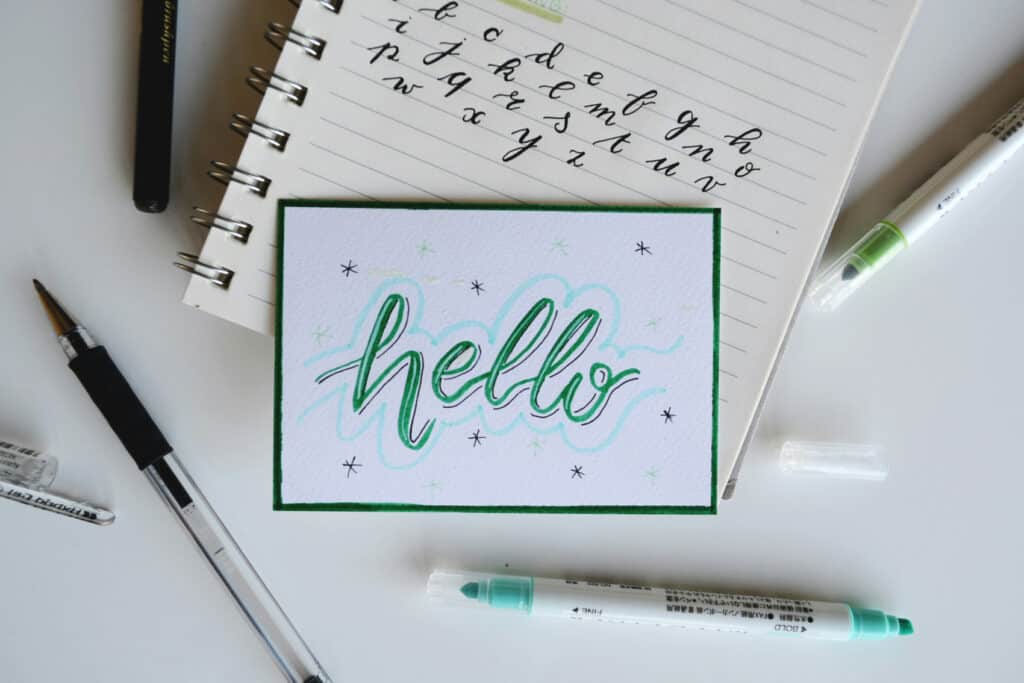
It only requires a few steps, but it can be confusing the first time you do it, especially if you’re still getting the hang of Kadence.
In this guide, I’ll walk you through everything you need to know about using custom fonts in Kadence, including step-by-step instructions, workarounds for the free version, and best practices to make your site stand out.
Quick Note: You’ll need Kadence Pro to unlock the custom fonts feature. If you don’t already have it, you can purchase it here.
How to Add Custom Fonts with Kadence
Adding custom fonts to your Kadence website is a straightforward process if you follow these steps:
Step 1: Download Kadence Custom Fonts
Kadence Pro includes a built-in feature for custom fonts. To use this feature, you must install and activate the Kadence Pro plugin.
- Upload Kadecne Custom Fonts to your Website.
- Navigate to Appearance → Kadence → Custom Fonts in your WordPress dashboard.
Step 2: Find Your Custom Font
Assuming you aren’t looking to reinvent the wheel by creating your own font, there are literally thousands of custom fonts to choose from.
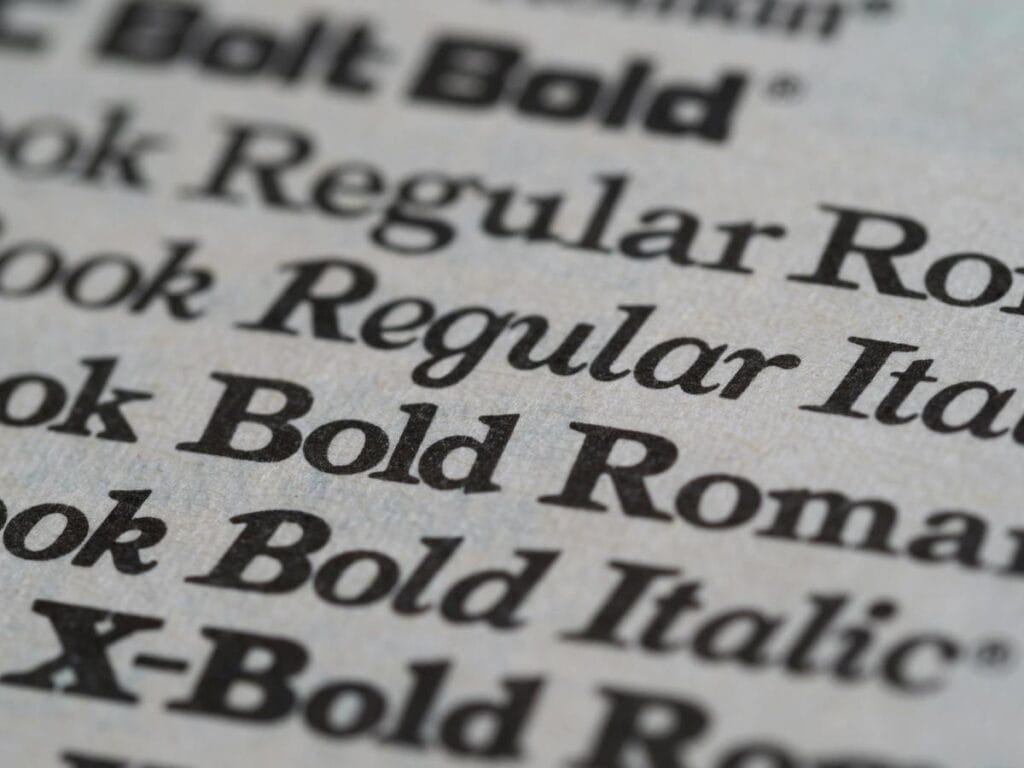
But you won’t find these within Kadence. You’ll have to go to a third-party site with free fonts available, like:
You can also purchase a custom font from a creator if you want something even more unique! I’ve always found great options on:
If you already have a custom font file, you need to confirm that it is in a compatible format.
You’ll need a .woff file and a .woff2 to upload it successfully to Kadence Custom Fonts.
If you only have access to .ttf or .otf files, you can use this Font Converter to convert them to the proper format and then upload them.
Step 3: Upload Your Font and Assign a Naming Convention
Once your font files are ready:
Go to Appearance → Kadence → Fonts → Add New Custom Font in the WordPress dashboard.
Upload your font file(s) and assign a name to your font.

Make sure to use a naming convention to help you identify and apply the font when customizing your pages and posts.
Step 4: Activate the Font
Once your custom font has been uploaded, it still won’t be automatically applied. You’ll have to do that manually. To do this, navigate to Appearance → Customize → Colors & Fonts → Typography.
Here, you should find your new custom font as an opinion among the basic fonts that already come with Kadance.
You can assign the font to specific areas, such as your site title, navigation menu, or body text.
It should even show up if you switch over to a WordPress Coming Soon page for a brief period!
Is There a Workaround for the Free Version of Kadence?
If you’re using the free version of Kadence, you can still add custom fonts using a plugin like Use Any Font.
Once you download the plugin, you’ll need to create an account and select a plan that works for you.

If you only have one website, then it’s just $9.99 (one-time purchase) to activate Use Any Font on your website. Two higher plans are available, but even the most expensive option that allows you to use the plugin on unlimited sites is only a flat fee of $49.
Although it’s not completely free, it is cheaper than upgrading to Kadence Pro and is definitely the best workaround if you don’t have access to Kadence Custom Fonts.
Best Practices for Using Custom Fonts on Kadence
Choosing and implementing custom fonts is about more than aesthetics. Here are some tips to ensure your fonts enhance usability and design:
Limiting Custom Fonts
While custom fonts are exciting, using too many can slow down your site and overwhelm your design. Stick to 2–3 fonts across your site for a cohesive look.
Understand Font Families
Font families convey specific tones and emotions, making them crucial for branding and communication, and you should think about them when branding.
For example, Helvetica works great for business settings, whereas Pacifico would be better suited for a creative brand or event. Here’s a quick rundown of some common font families!
Serif Fonts like (Times New Roman and Garamond) are classic and professional, often evoking a traditional and reliable feel.
Sans Serif Fonts (Arial and Helvetica) are modern, clean, and minimal, offering a straightforward and approachable vibe ideal for digital use. These are great for travel blogs and more creative sites.
Script Fonts (Pacifico or Brush Script) exude elegance and whimsy, making them great for creative projects or invitations.
Monospace Fonts (Courier )are technical and precise, often used in coding or retro-themed designs.
Display Fonts like Impact or Lobster grab attention with their playful or dramatic flair.
Rounded fonts (Quicksand or Varela Round) feel friendly and soft, and they are perfect for casual or children’s designs.
Selecting Font Sizes for Different Devices
Responsive design is critical. Over 50% of the people who visit your website will do so from a mobile device, so you need to make sure that whatever custom font you use is easy to read on a smartphone!
Use Kadence’s device-specific typography settings to adjust font sizes for desktop, tablet, and mobile views.
This ensures your text is legible across all devices and accessible to everyone who may visit your website.
More Tips for Using Kadence
Custom fonts are a small detail that can make a big difference in your website’s design and branding, but there is so much more to web design than simply choosing your fonts.
You must think about:
- Your layout (templates are great for this)
- Logo
- Custom Favicons
- Your Color palette
- and more!
So, if you’d like more help customizing your site to fit your brand, check out some of my Kadence design packages, where I work with you to bring your vision to life!
![How to Create a Mega Menu in Kadence [Easy Guide]](https://thesitestylist.co/wp-content/uploads/2025/01/Megamenu_design_image-768x512.jpg)
![How to Make a Favicon [Simple Guide]](https://thesitestylist.co/wp-content/uploads/2025/01/favicon_design-768x512.jpg)