How to Create a Mega Menu in Kadence [Easy Guide]

Navigating a website should be seamless, intuitive, and engaging—and that’s exactly what a mega menu does.
Mega menus allow you to display multiple links and subcategories in a clean, organized layout. This improves user experience and makes it easier for visitors to explore your site.
This isn’t really necessary for basic websites.
But as your business grows and you offer more services or content on a wider variety of topics, your website will become more complex, and a mega menu really helps with accessibility and user-friendliness.
If you’re using the Kadence theme, creating a mega menu might initially seem intimidating, but it’s very easy.
I’ll walk you through everything you need to know to create a Kadence mega menu, including why you’d even want to, the setup process, and customization options.
What is a Mega Menu?
A mega menu is an extended dropdown menu that displays multiple categories and links in an organized grid layout.
Mega menus are ideal for websites with deep site structures or a wide range of categories. Unlike traditional menus, they are much more interactive and can function as separate menus within each larger menu item.
Are Mega Menus and Sub Menus the Same?
Not quite.
Sub Menus are simpler dropdowns that display a single column of links under their parent menu item.
On the other hand, mega menus offer a larger, more structured layout that can include multiple columns, menu icons, and even images within the menu itself.
Do I Need Kadence Pro?
Yes, you’ll need Kadence Pro to unlock the “Ultimate Menu” and “Hooked Elements’ features of Kadence.
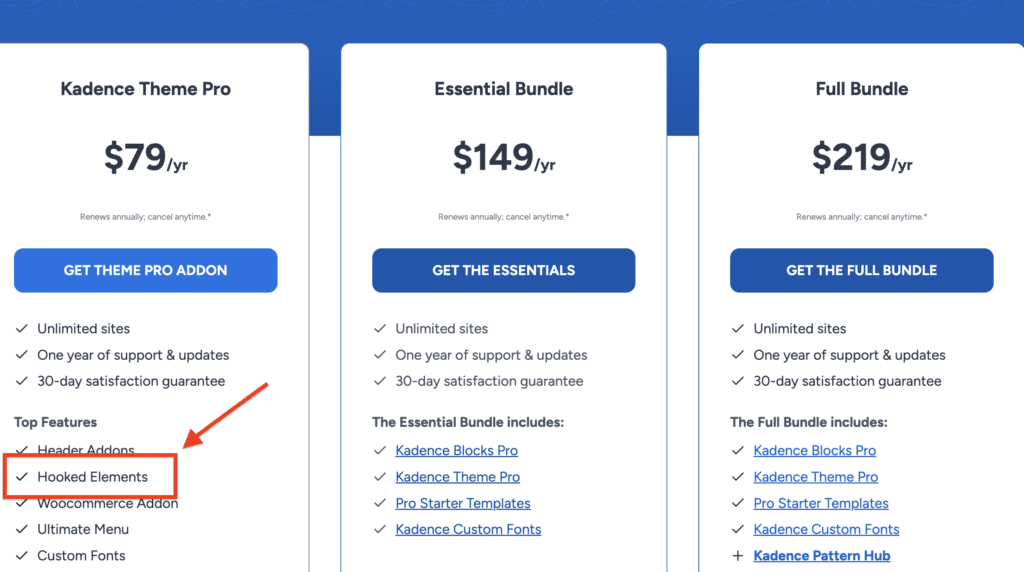
You’ll need both of these to create and customize your mega menu. However, this is one of my favorite benefits of the Pro version of Kadence.
Without Kadence Pro, you won’t have access to these features and will be stuck with the basic menu with the free version of Kadence.
Why Are Mega Menus Helpful?
Mega menus are great for appearance but are not just about aesthetics. They also play a huge role in the user experience, accessibility, and SEO behind the scenes.
Here’s why you should consider a mega menu, especially if you have a complex website.
It’s Good for User Experience
Mega menus improve navigation by offering a clear, organized view of your website’s content.
They help visitors quickly locate what they’re looking for without needing to dig through loads of pages.
It Improves Site Depth
Mega menus showcase multiple categories and subcategories in one place, encouraging visitors to explore more areas of your site and making your content more accessible to more users.
It’s also worth noting that anything that lowers the effort threshold for the user to find what they’re looking for is ALSO good for search engines crawling your site.
This means it will be indirectly more SEO-optimized since it’s easier for the search engines to find what your site is all about.
It Lowers Your Bounce Rate
When users can easily find what they need, they’re more likely to stay on your site longer, reducing bounce rates.
This means more customers and engagement with your content, products, and/or services– all because of a well-designed and easy-to-navigate mega menu.
These engagement signals are also key ranking factors, so they indirectly improve your site’s SEO.
How to Create a Mega Menu with Kadence
So, how do we actually create a mega menu within Kadence?
Here’s a quick, step-by-step guide explaining how.
Step 1: Plan Your Menu Structure
Before diving into the technical setup, map out your menu items and categories.
Decide which parent and child menu items you’ll include and how they’ll be grouped for clarity.
It’s also worth asking someone at this point how THEY might structure your content.
As business owners, seeing what we offer from a customer’s perspective can be difficult.
More often than not, the services and content clusters that we put into the same baskets don’t make the most sense to the user. So, it’s a great idea to ask for a second opinion.
Step 2: Add Parent Menu Items
Navigate to Appearance → Menus in your WordPress dashboard.
Add the main (parent) menu items you want to feature in your mega menu.
You likely have these menu settings already unless you’re building a new site from scratch.
Step 3: Enable Mega Menu for Parent Items
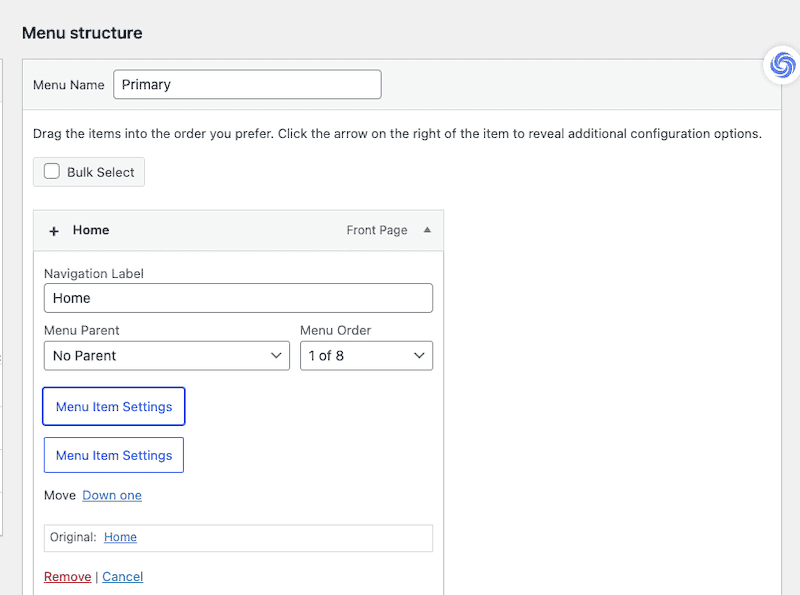
Once you have the parent menu set up, you can select the dropdown menu beside the menu item for which you’d like to create a mega menu.
Select Mega Settings. Then, check the option to Enable ‘Mega Menu‘. Save your changes.
Step 4: Customize the Layout
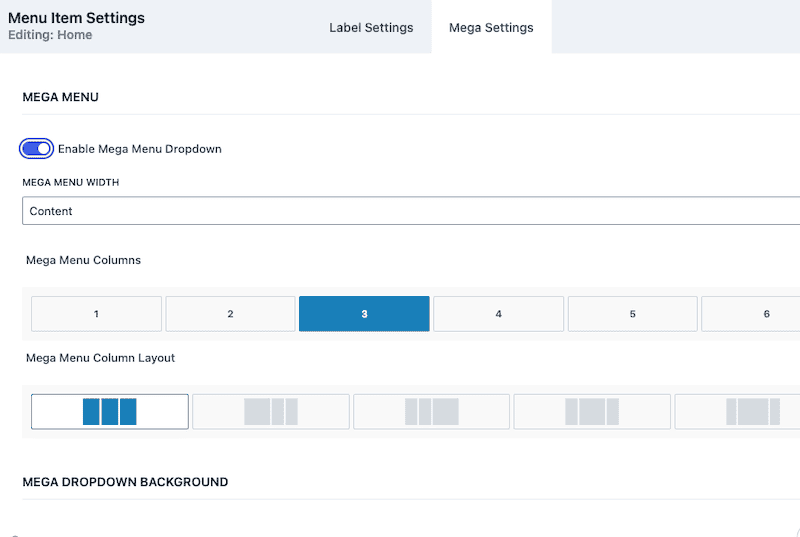
Once you enable the Mega Menu dropdown, a series of customization options will appear.
This is where you’ll create the basic design of the mega menu, including the number of columns, background colors, padding, dropdown item colors, and hyperlink colors.
Note: Select ONE Mega Menu Column. (Next, we’ll create a hooked element inside it)
Step 5: Create a Hooked Element
Now that we’ve enabled the Mega Menu, we must create a hooked element to insert into our menu.
Go to Customize → Kedence → Elements → Add New → Content Section.
From here, you have unlimited directions to take it, but the easiest way to start is:
- Add a Single Row Layout
- Add another row layout INSIDE of the first-row layout. Make it have the number of columns you’d like to have in your mega menu.
- Design the mega menu. You can add images, links, spacers, padding, width, etc. It’s as customizable as any page in Kadence.
- For each section you build, go to ‘Block Settings,’ click ‘Overlay Link,’ and add the link you’d like it to point to. This ensures the user can click anywhere on the section to follow the link.
- Go to Element Settings (next to the basic settings symbol at the top right). Go to ‘Display Settings [UNSET] and enable it to show on ‘Entire Site.’’
Step 6: Add Hooked Element to Mega Menu
Add a subcategory to the menu item.
Under Mega Settings, enable ‘Custom Content.’ A drop-down menu will appear, and you can then select the Hooked Element you just created!
Save your changes and preview the menu on your site.
That’s it!
A Few Mega Menu Design Examples
Looking for inspiration? Here are three examples of websites with effective mega menus of different complexities.
You can click any of the titles or images to visit the site and explore the interactive mega menu!
Barnes & Noble

The Blonde Abroad

Bench Accounting

FAQs and Common Issues
Even with Kadence’s tools, you might encounter some challenges when setting up your mega menu.
Does a Mega Menu Show Up on Mobile?
Kadence automatically adjusts mega menus for mobile devices by converting them into a collapsible accordion layout.
To test this, you can go to your website on a mobile phone and check that it’s working correctly.
You Should Disable The Parent Menu Link
Once you create a mega menu, you should disable the link to the parent item.
This way, it brings up the mega menu when the user hovers over it and won’t take them to a pillar page if they accidentally click.
Go to ‘Label Settings,’ and you will see an option to disable the link so that it is not clickable in the menu.
Adding Images to your Mega Menu
You can add images while customizing the hooked element you’ll use in your Mega Menu.
Customizing the hooked elements is the same as customizing row layouts anywhere on your website, so you can add images in any format you like.
Want a Custom Mega Menu designed for you?
If you have a larger site and don’t know where to start, check my custom patterns to see if I’ve had the chance to add any custom mega menu patterns you can install as a hooked element.
I’m constantly updating these and adding more!
Also, remember that you will need Kadence Pro to use this feature!
Otherwise, I hope this helps you create a mega menu that’s far more user-friendly for your audience, attractive, and SEO-friendly!
![How to Make a Favicon [Simple Guide]](https://thesitestylist.co/wp-content/uploads/2025/01/favicon_design-768x512.jpg)